
Bluetooth Control Guide
Bluetooth Control Guide
Learn how to control your Arduino car wirelessly using your smartphone. This chapter covers everything from app installation to advanced control techniques.
Download the Control App
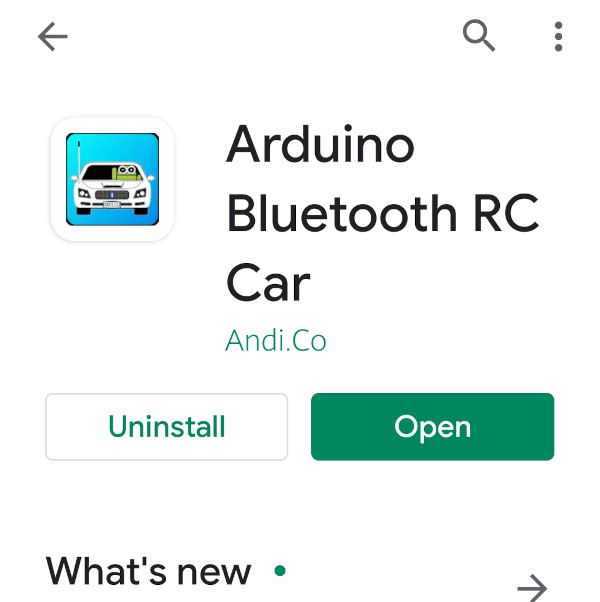
Get the Arduino Bluetooth RC Car app on your smartphone.
Instructions
- Open your device's app store
- Search for "Arduino Bluetooth RC Car"
- Install the app
- Launch the app after installation
Tips
- Ensure your device supports Bluetooth 2.0 or higher
- Grant necessary permissions when prompted
- Check app reviews for compatibility
Connect to Your Car
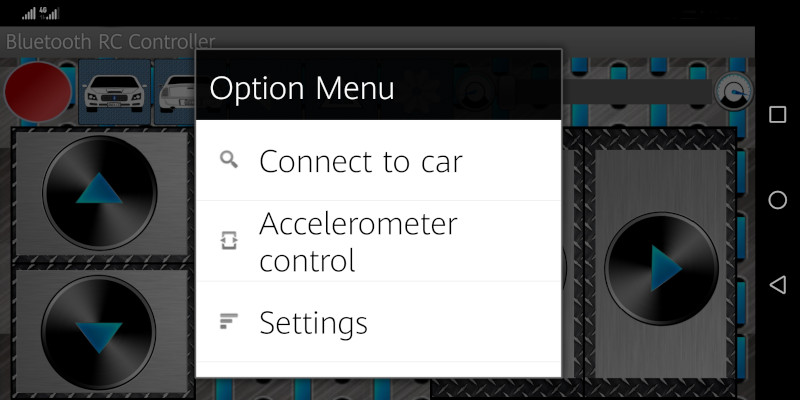
Pair your smartphone with the HC-06 Bluetooth module.
Instructions
- Enable Bluetooth on your smartphone
- Open device Bluetooth settings
- Look for "HC-06" in available devices
- Enter pairing code (usually 1234)
- Wait for successful connection
Tips
- Keep your car powered on during pairing
- Stay within 10 meters of the car
- Reconnect if connection is lost
Control Interface
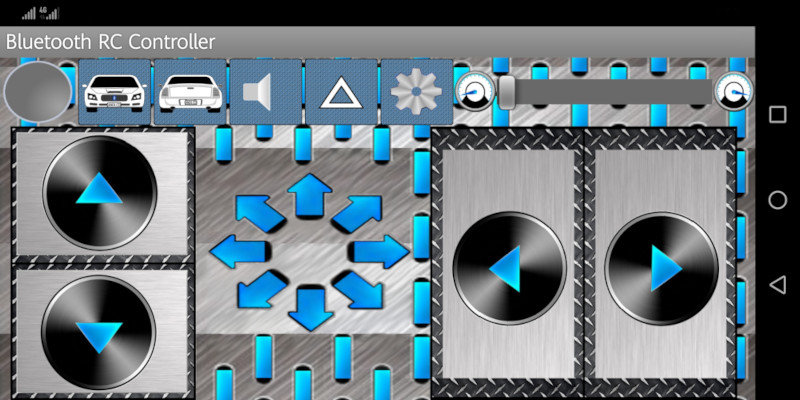
Learn how to use the app's control interface.
Instructions
- Open the control interface
- Familiarize yourself with button layout
- Test each control function
- Adjust speed settings if needed
Tips
- Start with lower speeds for practice
- Use smooth, controlled movements
- Monitor battery level indicators
Control Commands
| Button | Command | Action |
|---|---|---|
| Forward | F | Move forward |
| Backward | B | Move backward |
| Left | L | Turn left |
| Right | R | Turn right |
| Stop | S | Stop all motors |
| Horn | H | Play horn sound |
Share Your Creation!
Now that your Arduino car is up and running, why not share your creation with the community? Show off your build, share tips, and inspire others to start their own projects.