
Code Upload Guide
Code Upload Guide
Follow this step-by-step guide to successfully upload the Arduino car code to your board. We'll walk you through the entire process, from software installation to final upload.
Get Arduino IDE
Download the official Arduino development environment.
Install Arduino IDE
Download and install the Arduino IDE on your computer.
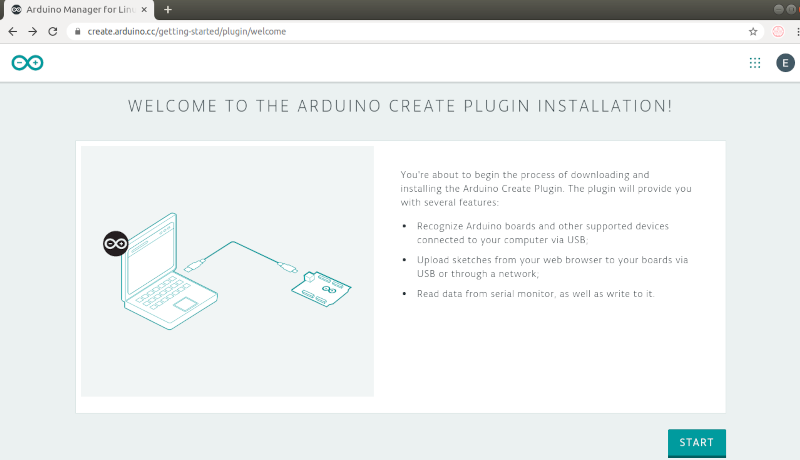
Instructions
- Visit the official Arduino website
- Download the latest version for your operating system
- Run the installer and follow the setup wizard
- Launch Arduino IDE after installation
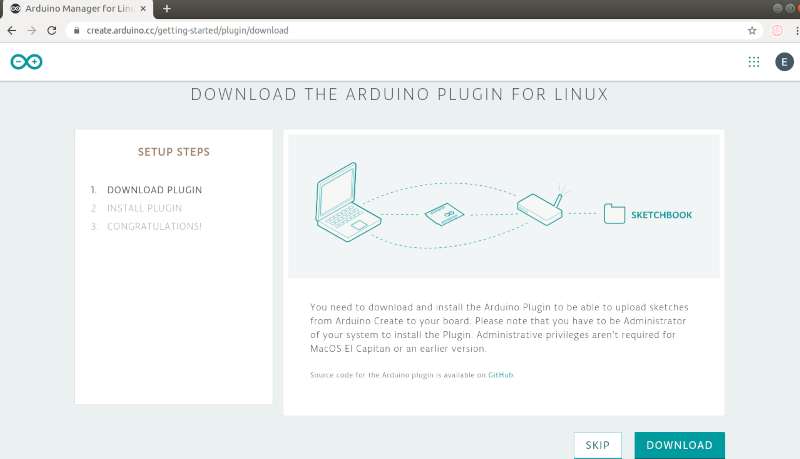
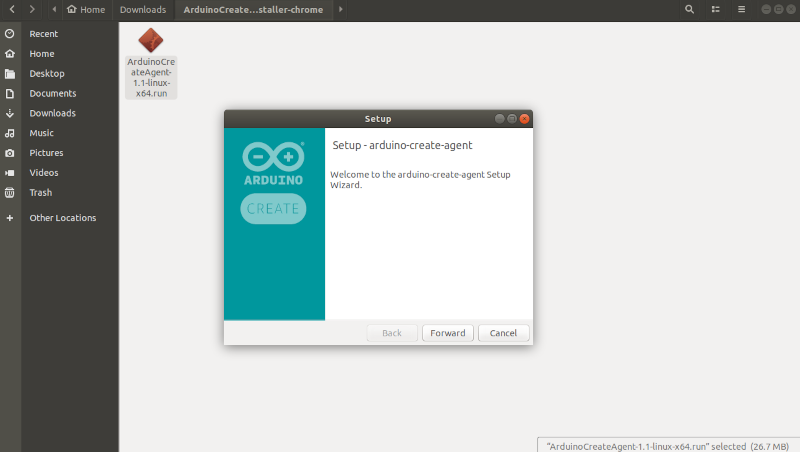
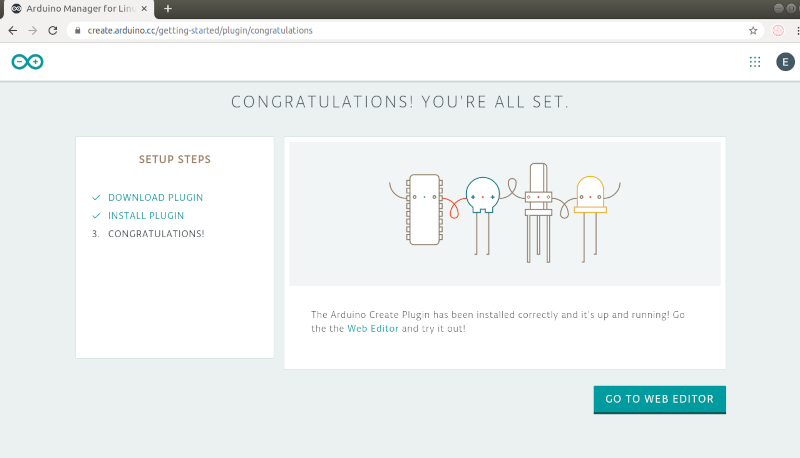
Tips
- Choose the correct version for your OS
- Accept driver installation if prompted
- Restart your computer after installation
Connect Arduino Board
Connect your Arduino board to your computer using a USB cable.
Instructions
- Use the provided USB cable
- Connect the USB-B end to Arduino
- Connect the USB-A end to your computer
- Wait for driver installation to complete
Warnings
- Use a high-quality USB cable for reliable connection
- Ensure the cable supports both power and data transfer
Configure Board Settings
Select the correct board and port in Arduino IDE.
Instructions
- Go to Tools > Board > Arduino AVR Boards
- Select "Arduino Uno"
- Go to Tools > Port
- Select the port showing "Arduino Uno"
Tips
- Port name varies by operating system
- On Windows, it appears as COM3, COM4, etc.
- On Mac/Linux, it appears as /dev/ttyUSB0 or similar
Warnings
- Wrong board selection may cause upload errors
- If port is not visible, check USB connection or drivers
Open the Code
Load the Arduino car code into the IDE.
Instructions
- Go to File > Open
- Navigate to the downloaded code folder
- Select arduinocar.ino file
- Verify all required files are present
Tips
- Keep all files in the same folder
- Check that pitches.h is in the same directory
- IDE should show multiple tabs if files are loaded correctly
Upload the Code
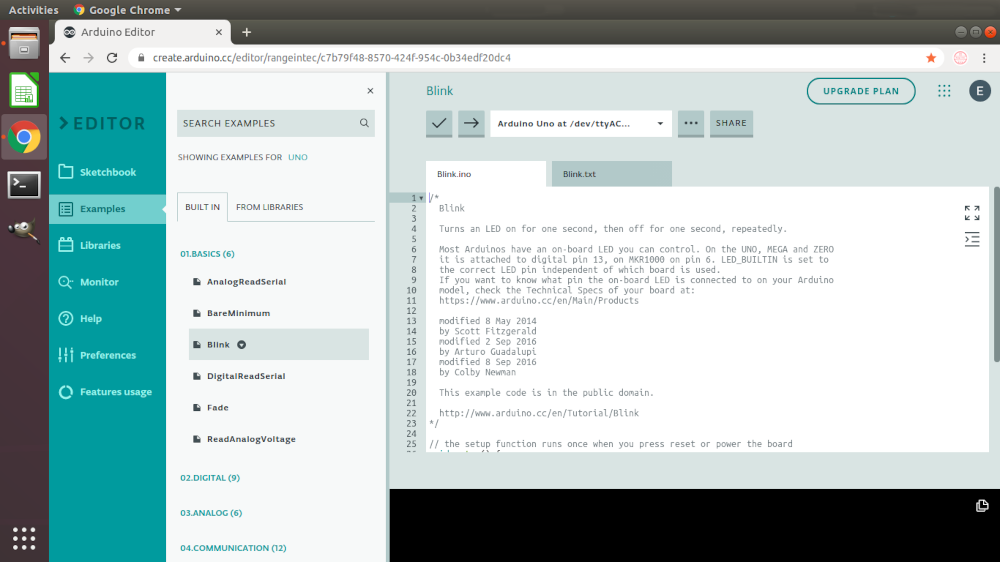
Compile and upload the code to your Arduino board.

Instructions
- Click the Verify button (checkmark) to compile
- Wait for compilation to complete
- Click the Upload button (right arrow)
- Watch the progress in the status bar
Tips
- Fix any compilation errors before uploading
- Keep an eye on the output console for messages
- LEDs on Arduino will flicker during upload
Warnings
- Do not disconnect USB during upload
- Ensure no components are shorting the board
- Close Serial Monitor before uploading
Ready to Control?
Now that your code is uploaded, it's time to learn how to control your Arduino car using your smartphone. Continue to the next chapter to get started with Bluetooth control.